
Follow Target is useful when one aircraft matters more than the rest of the map. Instead of repeatedly panning back to the same target, you can let AO keep the selected aircraft in view while the surrounding traffic picture updates around it.
Use this guide after AO Guide: Measuring Traffic with Range Calc Mode. It assumes you can already select an aircraft and read the target detail panel.
In this guide, you will learn how to:
- confirm which aircraft is selected
- turn
Follow Targeton and off - understand what changes when following is active
- keep reading the target panel while the map follows
- switch focus to another aircraft when needed
Step 1. Start with a selected aircraft
Select the aircraft you want to follow. AO opens the target detail panel automatically.
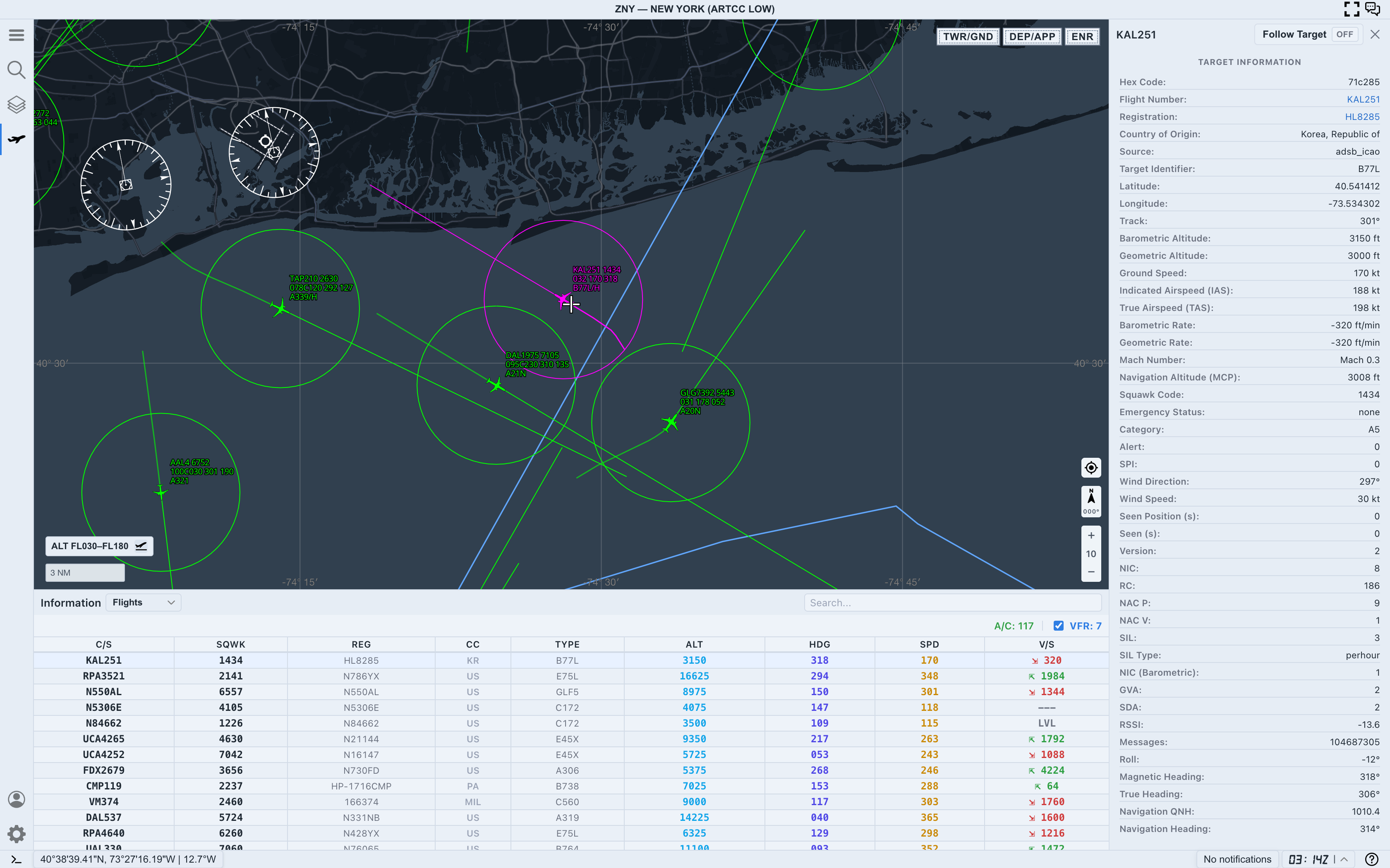
Before turning anything on, confirm the selected aircraft at the top of the panel. In this example, the selected target is KAL251.
When Follow Target is OFF, the aircraft is selected, but the map is still under your manual control. You can pan, zoom, and inspect nearby traffic without AO trying to keep the selected target centered.
This is the best starting point when you are still deciding whether this is the aircraft you actually want to watch.
Step 2. Turn Follow Target on
Use the Follow Target control at the top of the target detail panel.
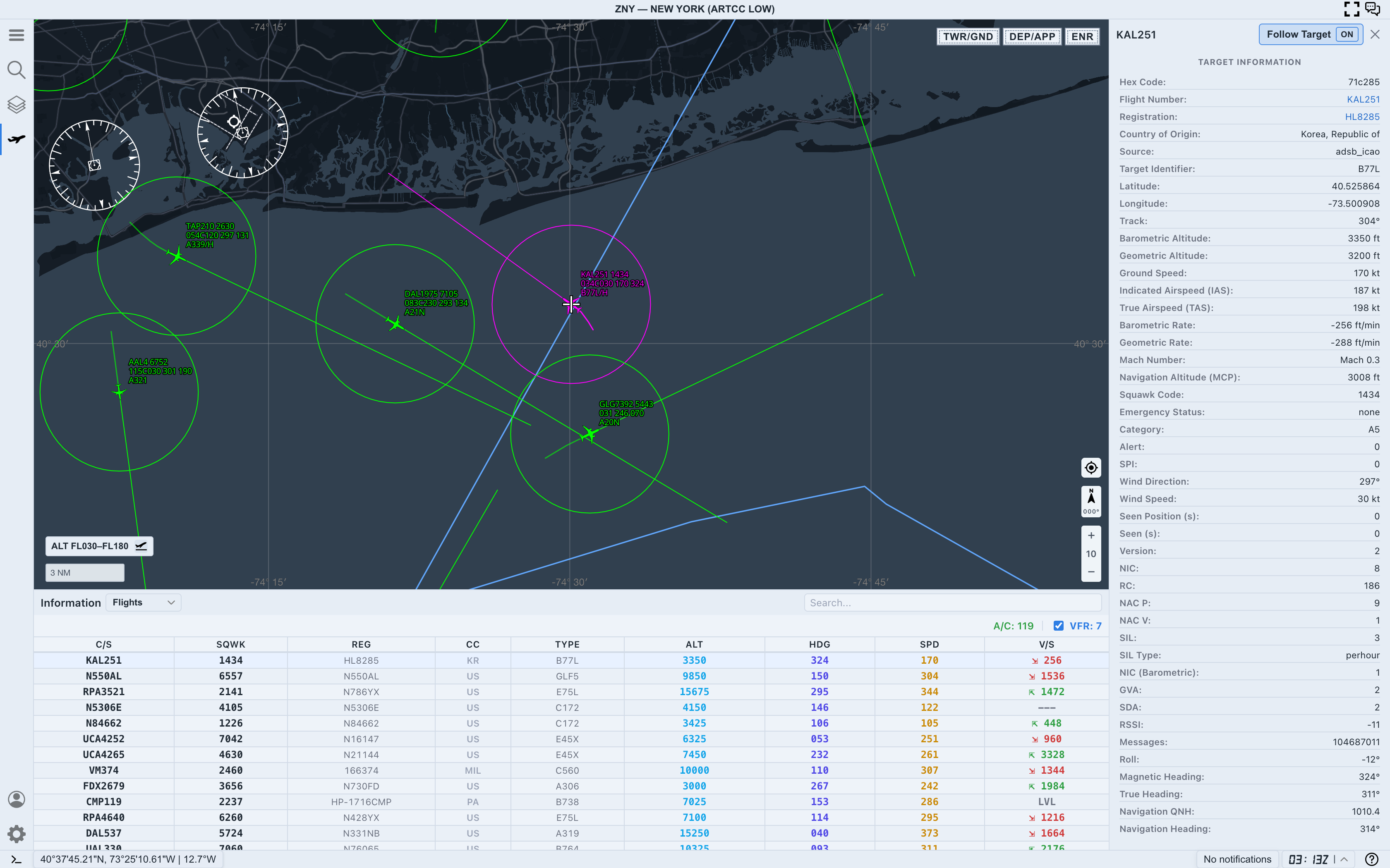
When the control changes to ON, AO begins keeping the selected aircraft in view. The highlighted aircraft remains the focus target, and the map follows its updated position.
Follow Target does not change the traffic data, altitude filter, target details, or selected aircraft. It changes how the map camera behaves.
Step 3. Watch the target and the panel together
Once Follow Target is active, keep reading both the map and the target detail panel.
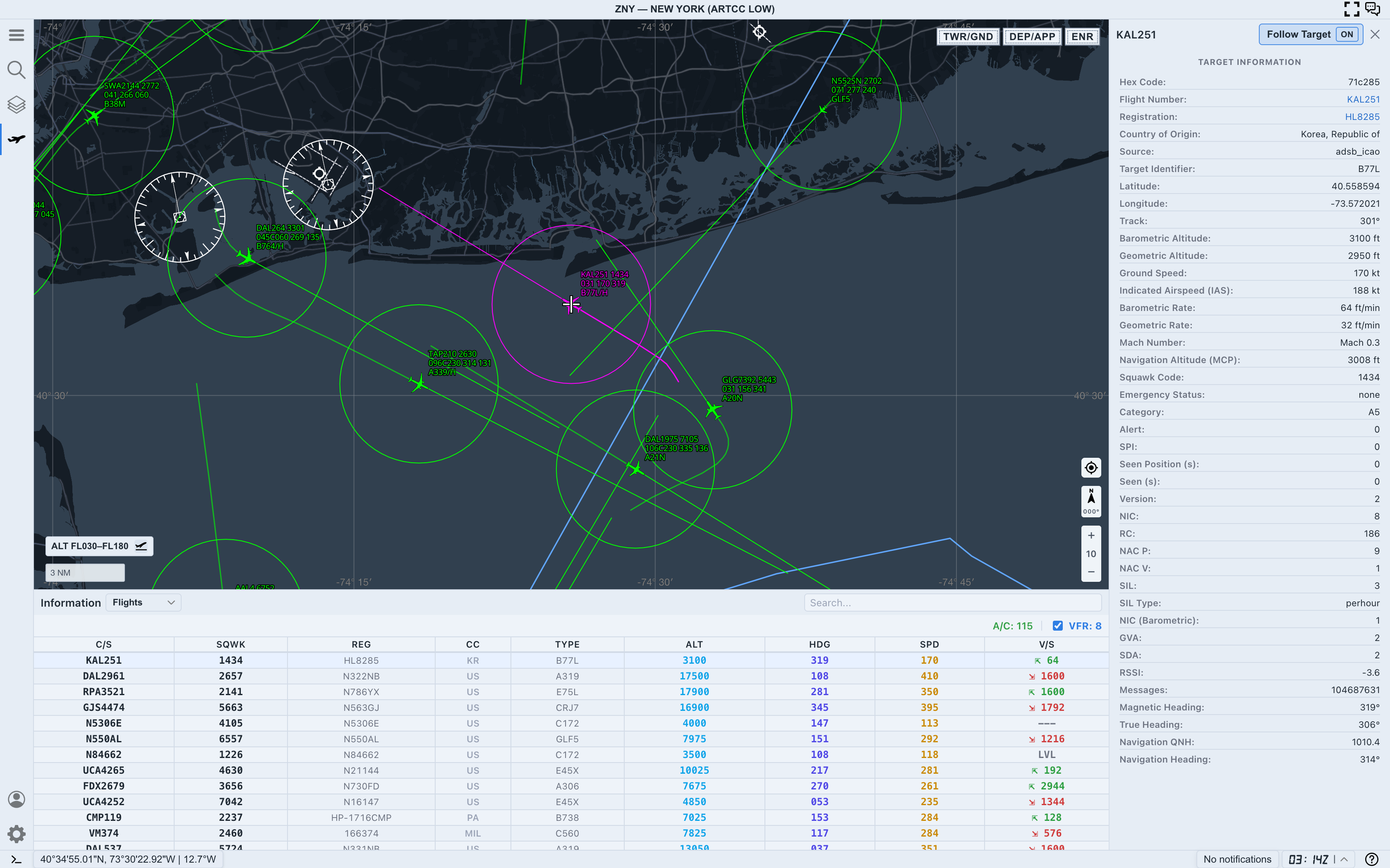
The map tells you where the aircraft is relative to nearby traffic, airspace, and your current zoom level. The detail panel tells you whether the target is still current and how it is moving.
Pay particular attention to:
Flight Number, so you know the panel still belongs to the target you intendedBarometric Altitude,Ground Speed, andTrack, for the quick motion pictureSeen Position (s)andSeen (s), so you know whether the position is freshV/Sin the flights table, for a fast climb, descent, or level read
If freshness starts to drift, treat the aircraft position more cautiously even if Follow Target remains on.
Step 4. Switch targets intentionally
If you select a different aircraft while Follow Target is on, AO changes the focus to the newly selected target.
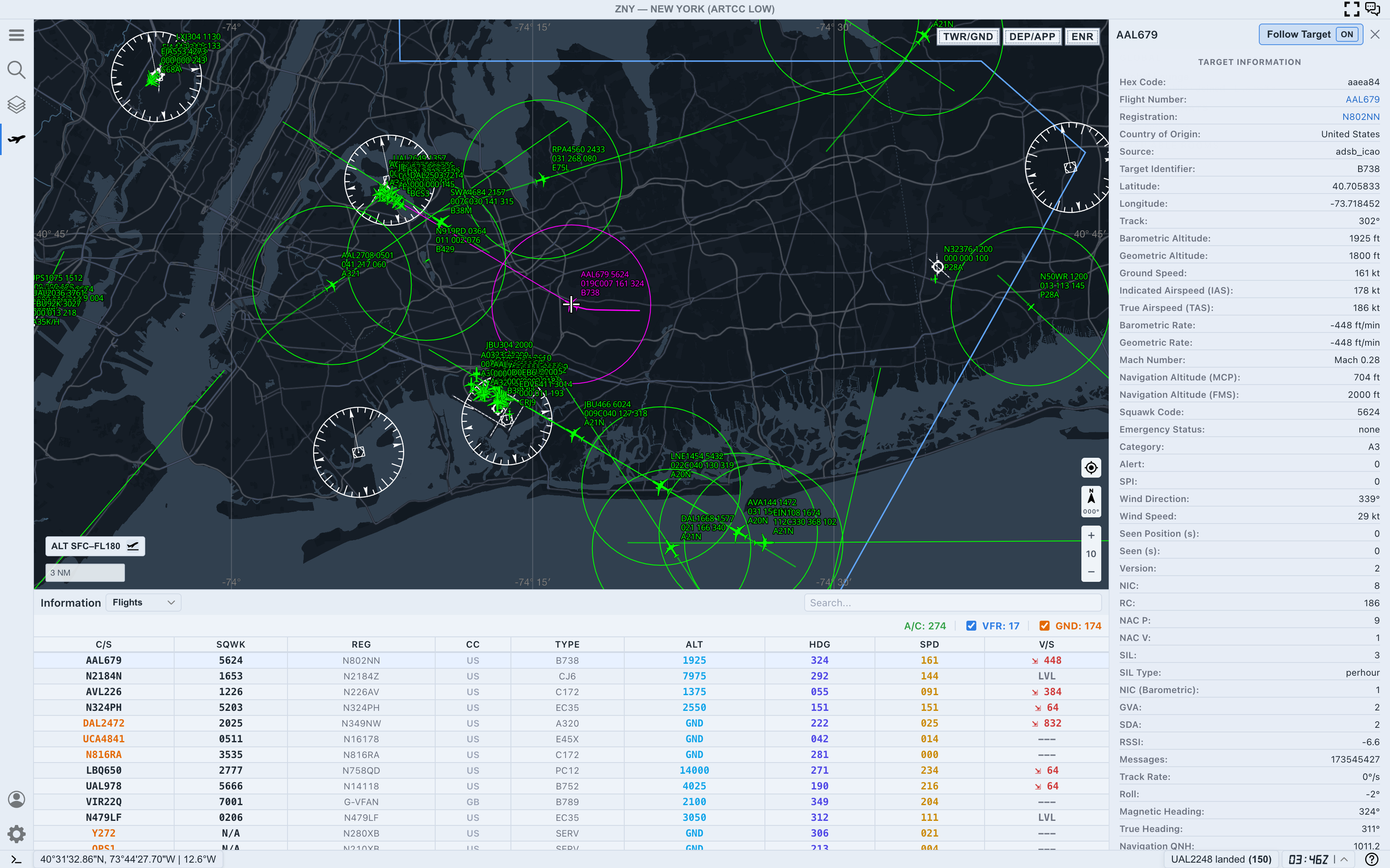
In this example, the focus has moved from KAL251 to AAL679. The selected symbol, panel title, and target detail fields all update together.
This is helpful when you are stepping through nearby traffic, but it can be confusing if you click a different aircraft by accident. When the map suddenly starts following a different target, check the panel title first.
Step 5. Turn it off when you need manual map control
Follow Target is meant for watching one aircraft over time. Turn it off when you want to:
- compare several aircraft without the map moving
- inspect airspace away from the selected target
- use Range Calculator across a wider area
- pan around a busy terminal environment
- keep a fixed view while traffic moves through it
The easiest check is the button itself. If you feel like you are fighting the map, look for Follow Target ON before changing anything else.
Practical reading order
When following an aircraft, use this order:
- Confirm the selected callsign at the top of the detail panel.
- Confirm whether
Follow TargetisONorOFF. - Watch the highlighted aircraft on the map.
- Read altitude, speed, track, and vertical movement from the panel and flights table.
- Check freshness before trusting precise movement.
- Turn Follow Target off when you need a fixed map view.
This keeps the camera behavior tied to the aircraft you actually intended to observe.
Common mistakes
- Forgetting Follow Target is on and wondering why the map keeps moving
- Treating Follow Target as a filter instead of a camera behavior
- Following a stale target without checking
Seen Position (s) - Clicking another aircraft and accidentally changing the followed target
- Staying zoomed too far in and losing surrounding traffic context
Next step
After you can follow one aircraft comfortably, continue with AO Guide: Choosing TWR/GND, DEP/APP, and ENR Modes to choose the right workspace mode for each traffic picture.