
AO gives you three workspace modes because the traffic picture changes depending on what you are trying to observe. Ground movement around an airport, terminal arrival and departure flows, and high-altitude enroute traffic all need different map context.
Use this guide after AO Guide: Following an Aircraft with Follow Target. It focuses on choosing the right workspace mode before you start interpreting individual aircraft.
In this guide, you will learn how to:
- find the workspace mode controls
- use
TWR/GNDfor airport and low-altitude work - use
DEP/APPfor terminal traffic - use
ENRfor enroute traffic - switch modes without losing the larger traffic story
Step 1. Find the mode controls
The workspace mode buttons sit in the upper-right corner of the map.
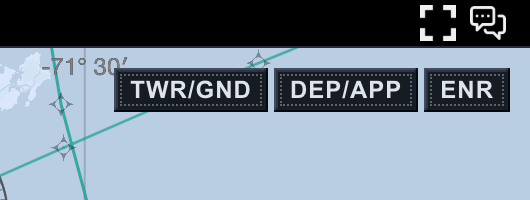
The three modes are:
TWR/GND: tower, ground, airport surface, and very low-altitude trafficDEP/APP: departure and approach traffic around a terminal areaENR: high-altitude enroute traffic and wider regional flows
The buttons do not change the identity of an aircraft. They change the operating context of the workspace: map style, altitude range, and the kind of traffic picture you are likely trying to read.
Step 2. Use TWR/GND near the airport
Choose TWR/GND when you are working close to an airport or watching low-altitude traffic.
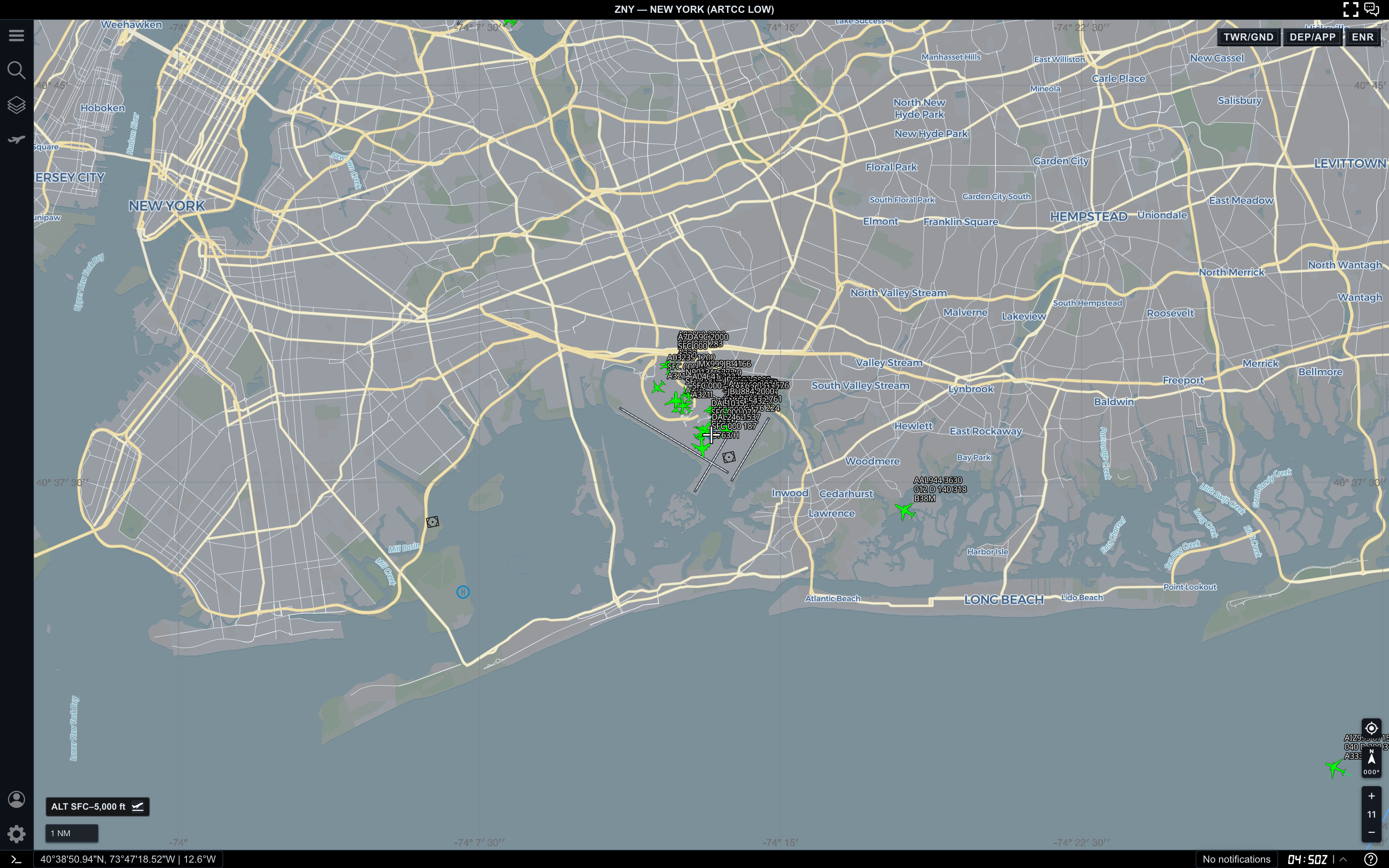
In this view, AO is focused near JFK with an altitude filter from the surface to 5,000 ft. The map emphasizes streets, airport geometry, water, and local ground context.
Use TWR/GND when you want to:
- inspect aircraft on or near the airport surface
- watch low-altitude traffic close to the field
- keep airport geography readable
- separate ground and very low-altitude activity from higher traffic
- understand what is happening close to a runway or terminal area
This mode is intentionally local. If you zoom out too far, the map may stop being the best way to understand the wider flow.
Step 3. Use DEP/APP for terminal flows
Choose DEP/APP when you care about arrivals, departures, and traffic transitioning around a terminal area.
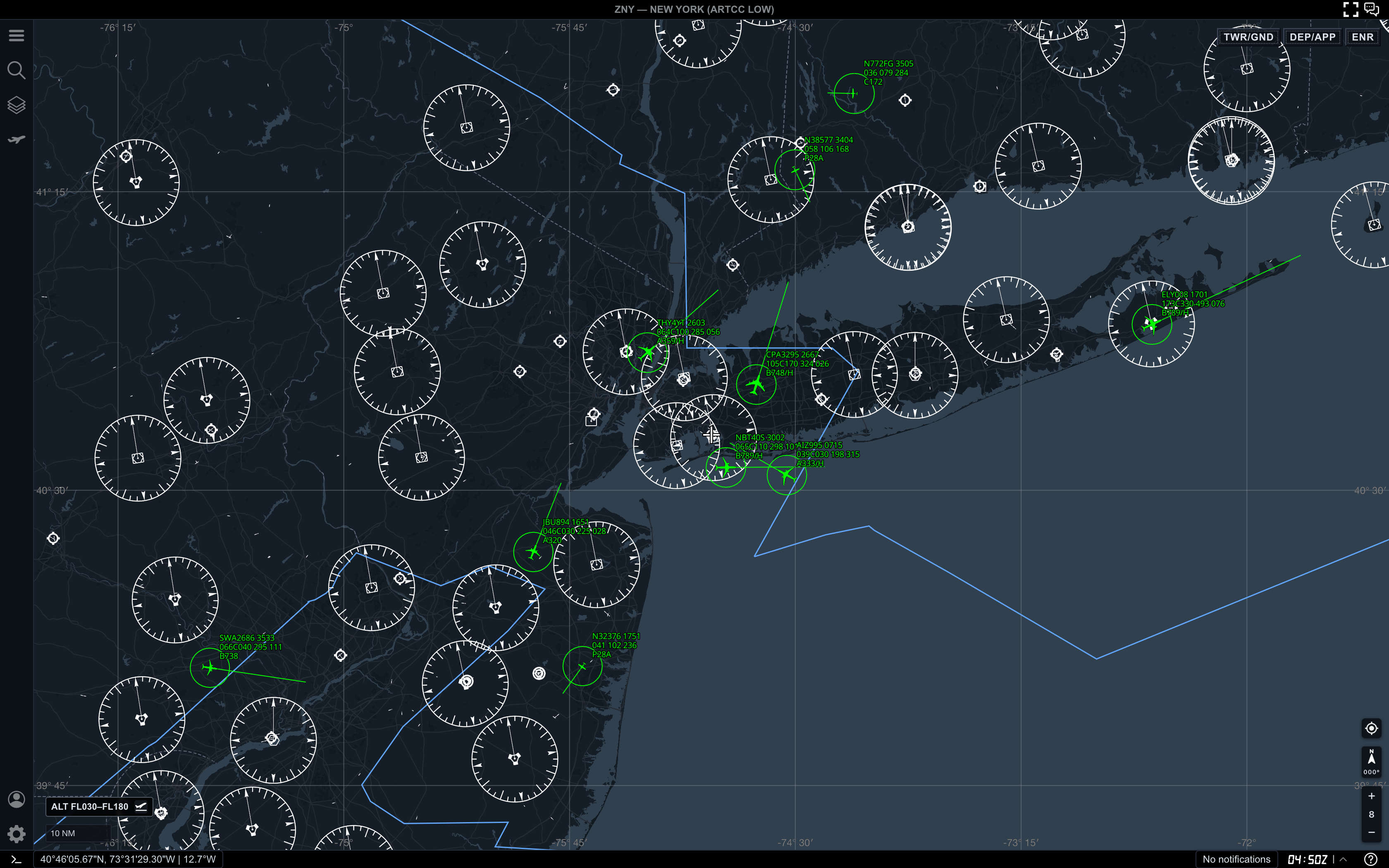
This view uses a low-to-mid altitude range and shows a broader terminal picture. It is wide enough to compare aircraft around the metro area, but still focused enough for approach and departure work.
Use DEP/APP when you want to:
- compare inbound and outbound traffic near major airports
- watch aircraft climb away from or descend toward a terminal area
- read terminal spacing before switching into a target-specific workflow
- use Range Calculator on nearby aircraft
- follow one aircraft while still seeing surrounding terminal traffic
If the map starts feeling too crowded, adjust the altitude filter or zoom in before changing modes. A cleaner DEP/APP view is usually more useful than a busy one.
Step 4. Use ENR for high-altitude traffic
Choose ENR when the important picture is regional flow rather than airport-local movement.
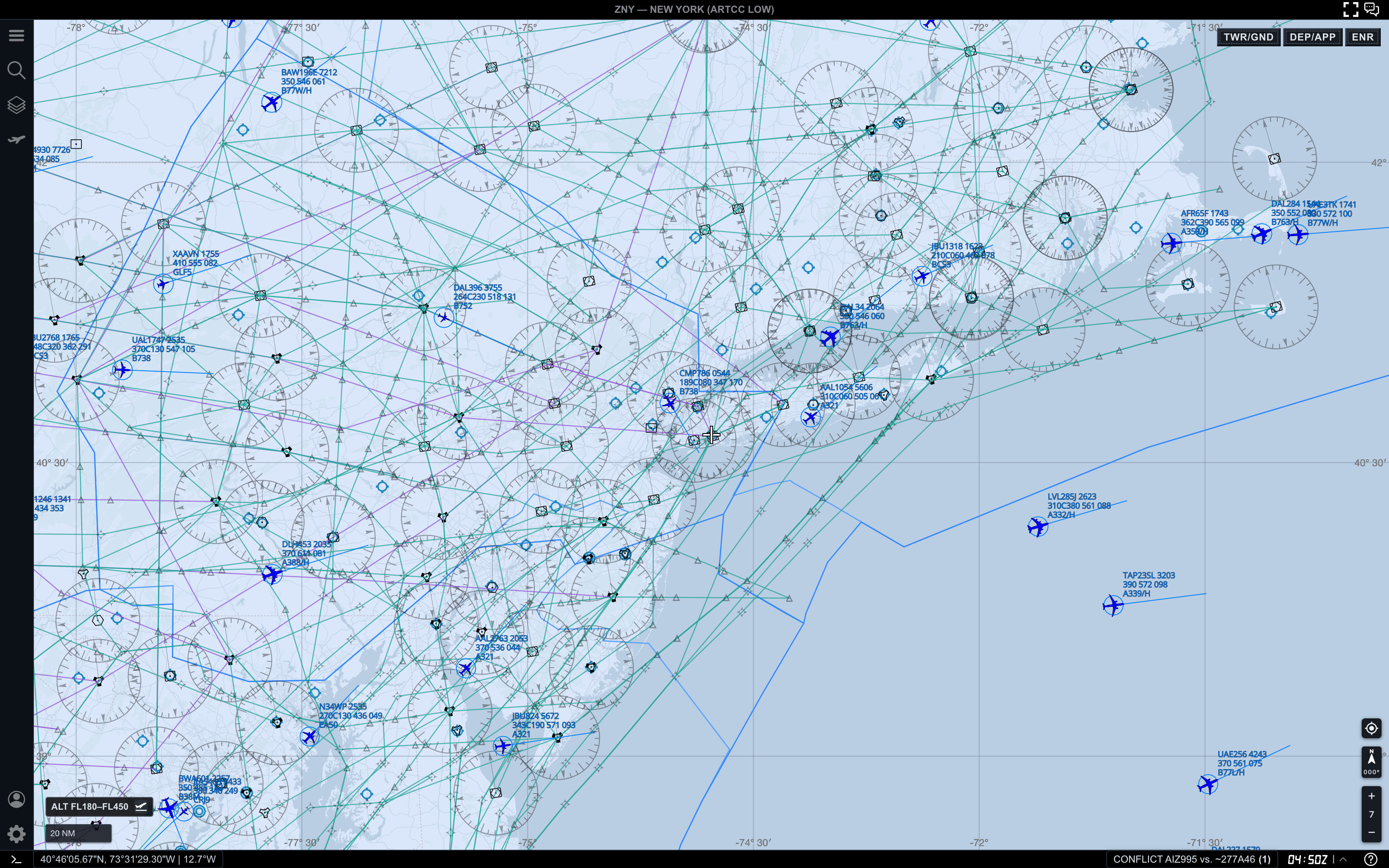
In this example, the altitude filter is set to FL180-FL450. The map shows wider high-altitude traffic, airways, and broader flow structure.
Use ENR when you want to:
- inspect aircraft cruising above terminal altitudes
- compare flows across a large region
- reduce low-altitude clutter
- understand where traffic is entering, crossing, or leaving an area
- prepare for measurements across wider distances
ENR is best when you need distance and flow. It is less useful when your question is about airport surface movement or a final approach stream.
Step 5. Switch modes before switching tools
Before opening another tool or selecting multiple targets, make sure the workspace mode matches the question you are asking.
If your question starts with “what is happening around this airport,” begin with TWR/GND or DEP/APP. If your question starts with “how is traffic flowing across the region,” begin with ENR.
Then add the next workflow:
- use Search when you already know the aircraft
- use Target Details when one selected aircraft matters
- use Range Calculator when spacing matters
- use Follow Target when one aircraft should stay in view
The mode gives you the right canvas. The tool gives you the next layer of detail.
Practical reading order
When choosing a workspace mode, use this order:
- Decide whether the question is airport-local, terminal, or regional.
- Choose
TWR/GND,DEP/APP, orENR. - Confirm the altitude filter matches the mode.
- Zoom until labels and range rings are readable.
- Select targets or open tools only after the base view is clear.
This keeps the workspace from becoming noisy before you have decided what kind of traffic picture you need.
Common mistakes
- Using
ENRwhen the real question is about airport surface movement - Staying in
TWR/GNDwhile trying to understand regional flow - Changing tools before checking the active mode
- Leaving an altitude filter from a previous workflow
- Judging a mode from one zoom level instead of adjusting the view
Next step
After you can choose the right workspace mode, continue with AO Guide: Working with Altitude Filters to shape the visible traffic picture inside each mode.